


Instagram Location Tags: How to Use Them and Why They Work

Instagram location tags attach a specific place to your post or Story so anyone browsing that spot can find your content. You have three quick options: add a location when you publish a feed post, drop a Location sticker on a Story, or tap and search Places to see everything tagged at that spot. Every function is documented in the Instagram Help Center, which lays out exactly how tagging and viewing work.
Here’s the fast path if you’re ready to act right now:
Posting a feed photo or video? Tap “Add location” before you share and search for the place.
Posting a Story? Open the sticker tray, choose Location, and search the same way.
Want to see who else posted from a location? Tap any geotag on a post, or search Places directly.
Location tagging matters more than most creators assume. Instagram’s scale, reaching 1 billion monthly users since 2018, means even a niche neighborhood tag puts your post in front of a meaningfully large local audience searching that exact spot. The rest of this guide walks through each workflow, the platform’s quirks, and how small businesses can turn geotagging into a repeatable discovery tactic.
Key Takeaways
Location tags turn a single post into a discoverable entry on a public place page, and consistent tagging compounds local visibility over time far more than any individual post does.
Point | Details |
Three core actions | Add location to feed posts, use the Location sticker on Stories, or tap/search Places to view tagged content. |
Story tags are permanent | Feed post locations can be edited later; Story location stickers cannot, so delete and repost to fix errors. |
Naming consistency matters | Use the exact same location name every time to avoid splitting your engagement across duplicate pages. |
Verification unlocks the Map | Sync your business through Meta Business Suite so it appears correctly on Instagram’s Map and Location View. |
Measure what matters | Track tagged-post growth and map views in Insights to confirm the tactic is driving real reach. |
How Do You Add a Location Tag to an Instagram Post?
Adding a location to a feed post takes about ten seconds once you know where Instagram hides the option.
Start your post as usual. Select your photo or video and move to the screen where you write your caption.
Tap “Add Location.” It sits just below the caption box, above hashtag and tagging options.
Search for the place. Type the business, landmark, or neighborhood name. Instagram pulls from its existing database of registered locations.
Select the closest match. If the exact address doesn’t appear, pick the nearest accurate option rather than an unrelated one.
Publish. The location now appears under your username at the top of the post.
One catch trips people up constantly: you can’t create a brand-new place directly inside the app. Instagram only lets you tag locations that already exist in its system, which is why a new café or pop-up shop sometimes won’t show up no matter how you spell it.
Already posted without a location, or tagged the wrong one? Open the post, tap the three dots, select Edit, and update the location field there. Feed post locations remain editable after publishing through this menu, according to Meta’s own guidance, so a typo or outdated tag is never permanent.
Pro Tip: Pick the same location name every time you post from that spot. If you alternate between “Downtown Boulder Coffee” and “Downtown Boulder Coffee Shop,” Instagram treats them as two separate pages and splits your tagged posts between them, quietly weakening your local footprint.
How Do You Add a Location Sticker to Instagram Stories?
Stories use a different tool, and it comes with a permanent limitation you need to know before you post.
Open the Story camera or select your media, then tap the sticker icon in the top toolbar. Choose Location from the list, search for your place the same way you would on a feed post, and drop the sticker anywhere on your screen.
Resize and place the sticker somewhere visible. Hiding it behind text or graphics keeps the tag technically active but cuts down on taps, since viewers can’t interact with what they can’t see.
Layer it near the top third of the screen, where thumbs naturally land during a tap-through.
If you’re tagging a live event, add the location sticker before you post rather than trying to fix it later.
That last point matters because Story location stickers cannot be edited once published. If you tag the wrong place, Meta’s Help Center confirms the only fix is deleting the Story and reposting with the correct location attached. There’s no edit menu workaround like there is for feed posts.
Reels behave more like feed posts. You can attach a location during the upload flow, and unlike Stories, that tag stays editable through the same post-edit menu.

Pro Tip: Add your Story location sticker first, then build your text and stickers around it. Adding it last is how most hidden-tag mistakes happen.
How Do You Find Posts Tagged at a Specific Location?
Instagram gives you three main ways to browse by place, and each works better for a different kind of search.
Tap any geotag on a post. Whenever you see a location under someone’s username, tapping it opens that location’s dedicated page, showing every public post shared from the same spot, exactly as described in Instagram’s own help documentation.
Search the Places tab. Type a city, neighborhood, or venue into the main search bar, then switch to the Places filter. Results split into Top and Recent, so searching Places lets you check both high-engagement posts and what’s happening right now at that spot.
Explore the Map. Instagram’s Map and Location View let you browse pinned posts geographically, which is useful for scouting nearby creators or seeing what’s trending a few blocks over.
If a place doesn’t show up in search, it likely hasn’t been added to Instagram’s location database yet, or it’s registered under a slightly different name than you expect. Try broader search terms first, like the city or shopping center name, before assuming the location doesn’t exist at all.
One number worth remembering: Instagram remains one of the most heavily trafficked social networks globally, which is exactly why location pages stay active and searchable even for small towns and modest local businesses.
What Are the Benefits of Using Instagram Location Tags?
Location tags do double duty. They help new people find you, and they give existing followers a reason to engage with where you actually are.
Local discovery compounds over time. Every tagged post adds one more entry to that location’s page, so a coffee shop that tags itself consistently builds a growing archive that new visitors browse before they even walk in.
User-generated content becomes free social proof. When customers tag your business in their own posts, their followers see real people enjoying your space, not your marketing copy.
Reposting tagged content builds community. Sharing a customer’s tagged photo to your Story costs nothing and signals that you notice your regulars.
Local hashtags amplify the effect. Pairing a location tag with a neighborhood hashtag hits two discovery systems at once instead of one.
Instagram Insights tracks how much of your reach comes from these tags, including map views tied to your business location once you’ve verified it through Meta Business Suite. Watching that number month over month tells you whether your tagging habit is actually converting into visibility.
A verified business location that syncs properly to Instagram’s Map doesn’t just sit there passively. It becomes a discoverable pin that nearby users can find while browsing what’s around them, turning geography itself into a distribution channel.
For businesses without a physical storefront, tagging nearby landmarks or event venues still works. A mobile pet groomer or food truck can tag the neighborhood or event location they’re working from that day, and still surface in local searches. Retail businesses looking for more local reach strategies can pair this with broader local marketing tactics built specifically for brick-and-mortar visibility.
Why Isn’t My Business Location Showing Up on Instagram?
Most location problems trace back to one of four causes, and each has a straightforward fix.
The place doesn’t exist in Instagram’s system yet. Since you can’t add new locations directly in the app, the fix is creating or claiming your business through a Facebook Business Page, which then syncs over to Instagram’s location database.
Your name is inconsistent across posts. If half your tagged posts say “Sunset Yoga Studio” and the other half say “Sunset Yoga,” you’ve fragmented your own local footprint. Standardize the name everywhere, including your Facebook Page, to keep engagement consolidated on one location page.
Your account is private. Location pages only display public posts. If your account is set to private, your tagged content simply won’t appear for anyone browsing that place, no matter how accurately you tagged it.
The tag is just wrong. If you tagged the wrong venue by mistake, open the post and edit the location through the post menu. For Stories, delete and repost with the correct tag since edits aren’t possible there.
If you spot another business misusing a location tag, or a location page showing incorrect information, Instagram’s reporting tools let you flag it from the location page itself.
Pro Tip: Before you launch any local campaign, search your own business name in Places first. If duplicate or outdated versions of your location exist, clean those up before asking customers to start tagging you, or you’ll be splitting engagement between two pages without realizing it.
Building a Location-Tag Routine That Actually Works
A location tag strategy only pays off when it’s consistent, not when it’s a one-time setup task. SOL Social Media builds this into a repeatable checklist for the small businesses and creators we work with.
Verify your location once, correctly. Confirm your business page is claimed and synced through Meta Business Suite before posting anything.
Tag every post and Story, no exceptions. Even a routine product photo benefits from a location tag if it keeps your local footprint active.
Prompt customers directly. A simple caption like “Tag us when you visit, we repost our favorites” turns passive customers into active promoters.
Use a second prompt in Stories. Try: “Where are you enjoying [product] today? Drop your location sticker and tag us.”
Track the right numbers. Watch tagged-post growth, map views, and engagement lift in Insights monthly rather than guessing whether tagging is working.
Here’s what to prioritize first when you’re short on time:
Priority | Action |
First | Verify and sync your business location through Meta Business Suite |
Second | Standardize your location name across every post going forward |
Third | Add a tagging prompt to captions and Story templates |
Fourth | Review map views and tagged-post reach in Insights monthly |
Businesses that want a deeper follower growth plan to pair with this can look at strategies built specifically to convert Instagram traffic into loyal followers. If your team needs hands-on help building out consistent tagging, captioning, and engagement routines, SOL Social Media’s engagement services manage that work directly, and our community involvement programs are built specifically around encouraging customers to tag and share.
What We Think Most Guides Get Wrong About Location Tags
Most advice on location tags treats them as a discovery hack, something you sprinkle onto a post and forget. That undersells what’s actually happening. A location tag is closer to a small, permanent listing on a public directory page that Instagram maintains for you, indefinitely, whether you post there once or fifty times.
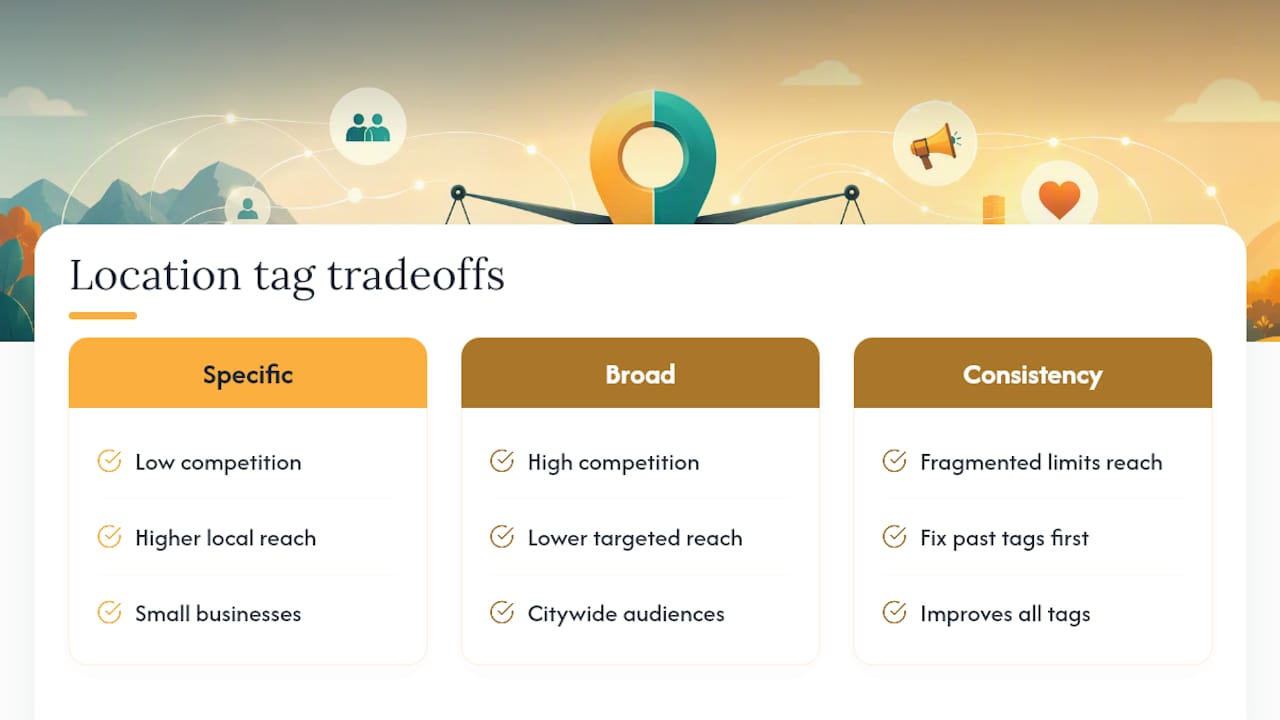
The overrated piece of conventional wisdom is the idea that tagging a bigger, more popular location automatically wins more reach. It doesn’t work that way. A hyper-specific tag, your actual storefront or a niche neighborhood spot, competes against far fewer posts than a citywide tag stuffed with thousands of unrelated accounts. Specificity beats size almost every time for small businesses trying to be found by people already nearby.
What we’d tell any small business owner to prioritize first isn’t fancier tagging. It’s fixing name consistency across every past post before adding anything new. A fragmented location history quietly caps how much reach any single tag can generate, no matter how well you execute everything else.
— SOL Social Media
Sources
These are the official references this guide draws from, worth bookmarking for future updates or edge cases not covered here:
FAQ
What Are Some Good Location Tags to Use on Instagram?
The most effective tags are specific and accurate: your exact storefront, a well-known nearby landmark, or the event venue you’re actually at. Vague or oversized tags like an entire city dilute your visibility among thousands of unrelated posts.
How Do You Add a Location Tag on Instagram?
Tap “Add Location” while composing a feed post, or select the Location sticker from the sticker tray when creating a Story, then search and select the place from Instagram’s existing database. You can’t create a brand-new location directly in the app.
Why Did My Instagram Post’s Location Disappear or Not Show Up?
This usually happens because the place doesn’t exist in Instagram’s location database yet, your account is private, or your business name is inconsistent across posts. Claiming your location through a Facebook Business Page and standardizing your name usually resolves it.
Can You Search for Location Tags on Instagram?
Yes. Use the search bar and switch to the Places tab to browse Top and Recent posts from any location, or tap a geotag on any post to open that location’s full page directly.
Recommended
Comments