


Google Business Profile Posts for Small Businesses

Google Business Profile posts are short updates you publish directly to your Business Profile on Google Search and Maps. Post at least once a week; most guides recommend 1–3 times weekly for single-location businesses, and once per week per location for multi-location businesses. The fastest action you can take right now: publish an offer or update with a real photo and a clear call-to-action button.
Why it matters:
Posts appear in your profile on both Search and Maps, putting your message in front of people already searching for what you sell.
Active profiles see more interactions than dormant ones, according to Verlua’s 2026 strategy data.
You can create, schedule, and manage posts for free through the Google Business Profile dashboard, the mobile app, or third-party tools.
Key Takeaways
Consistent, well-structured Google Business Profile posts drive more clicks, calls, and direction requests by keeping your profile active and giving customers a reason to engage every time they find you on Search or Maps.
Point | Details |
Post at least weekly | Single-location businesses should post 1–3 times per week; multi-location at least once per week per location. |
Choose the right post type | Offer posts tend to outperform update posts in CTR; use Event posts for time-bound announcements. |
Front-load your copy | Put the offer, price, or action in the first 80–100 characters so mobile users see it before truncation. |
Tag every CTA link with UTMs | UTM parameters are the only way to attribute website visits to specific posts in Google Analytics. |
SOL Social Media | SOL Social Media builds and manages monthly GBP posting calendars for small businesses, including content creation, scheduling, and reporting. |
What are Google Business Profile posts and who can use them?
Google Business Profile posts are brief, structured content cards that appear on your Business Profile in Google Search and Google Maps. Think of them as mini-announcements: a photo, a few lines of copy, and a button that drives a specific action. They sit in the “Updates” or “Overview” tab of your profile, depending on the device.
According to BrightLocal’s guide, posts show up differently on mobile versus desktop. On mobile, they appear prominently in the “Updates” section of your profile. On desktop, they tend to appear lower in the profile panel, often in a carousel. Mobile visibility is where most of the action happens, since the majority of local searches occur on phones.
Posts stay visible in your profile indefinitely, but Google surfaces the most recent ones first. Older posts don’t disappear, though they get pushed down as you add new ones. That ordering behavior is exactly why consistent posting matters: a profile with a post from six months ago signals inactivity to both Google and potential customers.
Who can post: Any verified Google Business Profile can publish posts. Businesses with multiple locations can post per location through the dashboard or at scale via the Google Business Profile API. Service-area businesses, brick-and-mortar shops, restaurants, healthcare practices, and professional services all qualify. Unverified profiles cannot publish posts.
There are three post types: Update (general news, announcements, or content), Offer (promotions with optional coupon codes and date ranges), and Event (time-bound happenings with a title, start date, and end date). Each type has its own field set and display behavior, covered in the next section.
Which post type should you use for your business?
Choosing the right post type shapes how Google displays your content and how customers respond to it. Google’s official post management guide outlines the fields and options for each type.
Update posts
Update posts are the most flexible. They accept a photo or video, up to 1,500 characters of text, and an optional CTA button (Call, Book, Order, Learn more, Sign up, Get offer). Use them for:
New product arrivals or service launches
Staff spotlights or behind-the-scenes content
Seasonal announcements and hours changes
Blog content repurposed as a short summary with a “Learn more” link
Offer posts
Offer posts are built for promotions. They display a “View offer” label in your profile, which creates visual contrast that draws attention. Verlua’s 2026 data shows that offer posts tend to outperform update posts in click-through rate because the promotion label creates urgency, based on observed engagement trends. Required fields include a title and start/end dates. Optional fields include a coupon code, redemption link, and terms and conditions. Use offer posts for:
Limited-time discounts or seasonal sales
New customer promotions
Bundle deals or service packages
Event posts
Event posts require a title, start date, and end date. They work well for:
In-store events, workshops, or classes
Webinars or virtual consultations
Community events your business sponsors
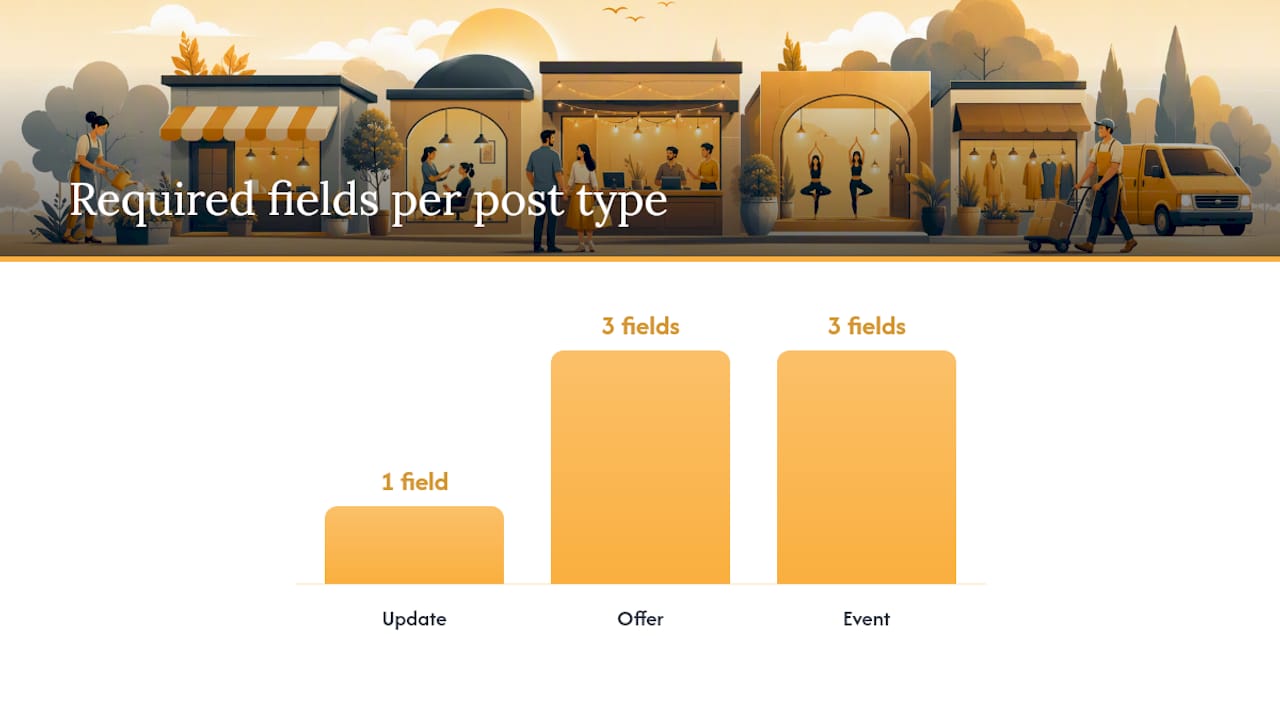
A field checklist at a glance:
Field | Update | Offer | Event |
Photo/Video | Optional | Optional | Optional |
Text (up to 1,500 chars) | Yes | Yes | Yes |
Title | Optional | Required | Required |
Start/End Dates | No | Required | Required |
Coupon Code | No | Optional | No |
CTA Button | Optional | Optional | Optional |
How do you create, schedule, edit, and delete a GBP post?
The full workflow, from draft to published, takes under five minutes once you know the steps. Google’s Business Profile Help documentation covers the complete creation and management flow.
Posting from the dashboard
Go to business.google.com and sign in.
Select the location you want to post for (if you manage multiple).
Click “Add update” or navigate to the Posts tab.
Choose your post type: Update, Offer, or Event.
Upload a photo or video (recommended: 1200 x 900 pixels, JPG or PNG).
Write your post copy. Front-load the value in the first 80–100 characters since mobile truncates the rest.
Select a CTA button if relevant.
Choose “Publish” to go live immediately, or use the Schedule option to set a future date and time.
Posting from the mobile app
Open the Google Maps app or the Google Business Profile app, tap your profile, select “Add update,” and follow the same steps. The mobile app is useful for posting real-time photos from an event or a new product display.
Scheduling and recurring posts
Scheduling and recurring post features rolled out through 2026, making batch creation practical. You can now create a full month of posts in one session and schedule them to publish on specific dates. Recurring posts let you set a post to repeat on a defined interval, useful for weekly specials or standing offers.
Pro Tip: Batch your posts on the first Monday of each month. Write four to eight posts at once, schedule them across the month, and you won’t need to think about it again until the next batch session.
Editing and deleting posts
To edit a live post, go to the Posts tab, find the post, and click the pencil icon. To delete it, click the three-dot menu and select “Delete.” Edits may briefly push the post back to Pending status while Google reviews the change.
What content and image rules does Google enforce for posts?
Google’s content policy for Business Profile posts covers both what you write and what you upload. Violating these rules is the most common reason posts get rejected, so understanding them upfront saves real time.
Prohibited content categories:
Illegal products or services, including regulated goods without proper licensing
Sexually explicit or adult content
Dangerous or harmful content (weapons, drugs, self-harm)
Misleading claims or deceptive offers
Spam: keyword stuffing, irrelevant content, or duplicate posts across locations
Unsafe or deceptive links (URLs that redirect to malware or phishing pages)
Personal attacks, hate speech, or harassment
Image and video rules:
Accepted formats: JPG, PNG for images; MP4 for video
Minimum image size: 250 x 250 pixels; recommended: 1200 x 900 pixels
Maximum file size: 5 MB for photos, 75 MB for videos
Videos must be under 30 seconds
Avoid heavy text overlays on images; Google’s review system flags them, and they reduce visual appeal
No watermarks from third-party stock sites; use original or licensed images
Common rejection reasons and quick fixes:
Phone numbers or URLs in post text: Move contact info to your profile fields, not the post body.
Excessive capitalization or punctuation: Write normally; ALL CAPS reads as spam.
Duplicate posts: Don’t publish the same post across multiple locations word-for-word; localize each one.
Broken or redirecting links: Test every URL before publishing.
Regulated goods without context: If you sell alcohol, firearms accessories, or supplements, keep claims factual and compliant.
From the Google Business Profile community best-practices guide: “Posts that focus on timely, relevant, and accurate information about your business perform best and are least likely to be flagged for review.”
For the full policy, review Google’s Business Profile photos, videos, and posts content policy directly in Google Support. When a post shows “Not approved,” read the rejection reason in the dashboard before resubmitting.
How do you optimize GBP posts for visibility and engagement?
Getting a post published is step one. Getting people to click it is the real goal. These practices consistently improve post performance for small businesses.
Image guidance:
Use real photos of your business, products, or team. Stock photos underperform because they look generic in a local context.
Shoot at 1200 x 900 pixels (4:3 ratio) for clean display across devices.
Avoid text overlays heavier than a logo or short tagline; they reduce click appeal and can trigger review.
Copy guidance:
Put the offer, price, or key action in the first 80–100 characters. Mobile truncates everything after that, so if your hook is buried in sentence three, most people won’t see it.
Include a local keyword naturally: “Same-day plumbing repair in Baltimore” beats “We fix pipes fast.”
Keep total copy between 150–300 characters for most post types; longer is fine for events with details, but tighter copy converts better for offers.
Write for the customer’s intent, not your internal language. “Book a free 20-minute consult” is clearer than “Schedule a discovery session.”
CTA button selection:
Call: Best for service businesses where the next step is a phone conversation.
Book: Ideal for appointments, classes, or reservations.
Order: Use for restaurants or e-commerce with a direct order link.
Learn more: Works for content-heavy posts or when you want traffic to a specific landing page.
UTM tagging:
UTM parameters let you track exactly which post drove a website visit in Google Analytics. Without them, post-driven traffic blends into your overall organic or direct numbers. A sample UTM string for a GBP post:
https://yourwebsite.com/offer?utm_source=google&utm_medium=gbp_post&utm_campaign=spring_sale_2026
Use utm_source=google, utm_medium=gbp_post, and utm_campaign to name the specific post or promotion. Apply this to every CTA link you publish.
Posting cadence:
Sendible’s multi-location guide recommends 1–3 posts per week for single-location businesses and at least once per week per location for multi-location operations. Consistency matters more than volume. A steady weekly post outperforms a burst of five posts followed by six weeks of silence.
Pro Tip: Pair your GBP posts with your social media calendar. If you’re posting a promotion on Instagram, publish a matching offer post on your Business Profile the same day. The message reinforces across channels, and you’re not creating content twice.
For more on small business social media marketing, SOL Social Media has a practical guide that covers channel alignment.
How do you measure GBP post performance?
Google Insights gives you a starting point, but it has real limits. Understanding what it tracks, and where it falls short, helps you build a measurement approach that actually tells you something useful.
What Google Insights shows
Google Insights reports on profile-level actions: website clicks, calls, direction requests, and photo views. Post-specific CTA clicks roll up into the overall profile dashboard rather than appearing as a separate post metric. That means you can see that someone clicked “Call” from your profile, but you can’t confirm from Insights alone whether a specific post drove that action.
Why UTM tagging is non-negotiable
BrightLocal’s guide makes the case clearly: UTM tagging is the only reliable way to attribute website visits to specific posts. When you add UTM parameters to your CTA link, Google Analytics records the session with your campaign data attached. You can then filter by utm_medium=gbp_post to see exactly how much traffic your posts are generating.
KPIs to track
Metric | Where to find it | What it tells you |
Website clicks from posts | Google Analytics (UTM filter) | Direct traffic attribution per post |
Profile website clicks | Google Business Profile Insights | Overall profile-driven web traffic |
Calls | GBP Insights | Phone actions from the profile |
Direction requests | GBP Insights | In-person intent signals |
Post views | GBP Insights (limited) | Impression-level visibility |
Conversions | Google Analytics Goals/Events | Revenue or lead actions from post traffic |
Setting realistic expectations
Posts are an indirect ranking signal, not a direct one. Rank Math’s analysis explains that posts contribute to engagement and keyword relevance signals, which can support broader local visibility over time, but they won’t move your local pack ranking overnight. The realistic payoff is incremental: more clicks, more calls, and a profile that looks active and trustworthy to people comparing their options.
Track your UTM data monthly. After 60–90 days of consistent posting, you’ll have enough data to identify which post types and topics drive the most website visits and calls.
How do you fix visibility problems and rejected posts?
Most GBP post problems fall into a short list of causes. Work through this checklist before contacting Google support.
Check your verification status — Posts won’t publish on an unverified profile. Go to your Business Profile dashboard and confirm the profile shows as “Verified.”
For API or multi-location issues, the Google Business Profile Help center has escalation paths for developer and agency accounts. If posts are disappearing after going live, it may indicate a spam or hacked-content flag on the account, which requires a support ticket rather than a self-serve fix.
What automation options exist for GBP posting?
Automation makes consistent posting achievable for businesses that can’t dedicate time to it daily. The options range from Google’s own native tools to third-party platforms and the full API.
Google Business Profile API:
The GBP API is designed for multi-location businesses, agencies, and developers who need to manage posts programmatically. It lets you create, update, and delete posts across hundreds of locations from a single integration. You’ll need a Google Cloud project and API credentials to use it. For a single-location small business, the API is overkill; for a franchise or chain with ten or more locations, it’s the only practical path to consistent posting at scale.
Native scheduling and recurring posts:
Google added scheduling and recurring post features in late 2025, with broader rollout through 2026. You can now write a post and set it to publish on a specific future date and time, or configure a recurring post that repeats on a set interval. This makes batch creation practical: spend 30 minutes on the first of the month, schedule four weeks of posts, and you’re done.
Third-party tools:
Third-party platforms offer bulk scheduling, multi-location publishing, and analytics dashboards that go beyond what Google Insights provides. When evaluating a tool, look for:
Native GBP integration (not just social media scheduling)
Bulk upload via CSV for multi-location posting
UTM parameter support built into the link fields
Post performance reporting beyond Google’s native Insights
Automation pitfalls to avoid:
Posting identical copy across multiple locations triggers spam signals. Localize each post, even slightly.
Scheduling too many posts in rapid succession can look like automated spam. Space them at least 24–48 hours apart.
Never automate a post with a broken or outdated link. Audit your landing pages before scheduling.
Recurring posts with stale offers confuse customers. Set an end date or a calendar reminder to update them.
Pro Tip: If you’re managing social media post automation across channels, treat GBP as one stream in your broader scheduler. Batch GBP posts alongside your Instagram and Facebook content so everything goes out in one planning session.
A 30-day GBP posting plan with 12 ready-to-use prompts
This calendar gives you a full month of posts with minimal prep. Adapt the prompts to your business name, location, and offer.
30-day posting calendar
Week | Day | Post Type | Content Prompt |
1 | Monday | Update | Introduce your team or a staff member with a real photo |
1 | Thursday | Offer | Limited-time discount on your most popular product or service |
2 | Monday | Event | Announce an upcoming in-store event, class, or consultation |
2 | Thursday | Update | Share a customer result or a before/after (with permission) |
3 | Monday | Offer | Bundle deal or package promotion with a coupon code |
3 | Thursday | Update | Highlight a product, service, or seasonal item with a photo |
4 | Monday | Event | Promote a community event you’re sponsoring or attending |
4 | Thursday | Update | Share a tip, how-to, or FAQ relevant to your customers |
12 ready-to-use post prompts
New arrival: — “Just in: [Product Name] is now available at [Business Name] in [City]. [CTA: Learn more]”
Community involvement: — “[Business Name] is proud to support [local cause or event]. [CTA: Learn more]”
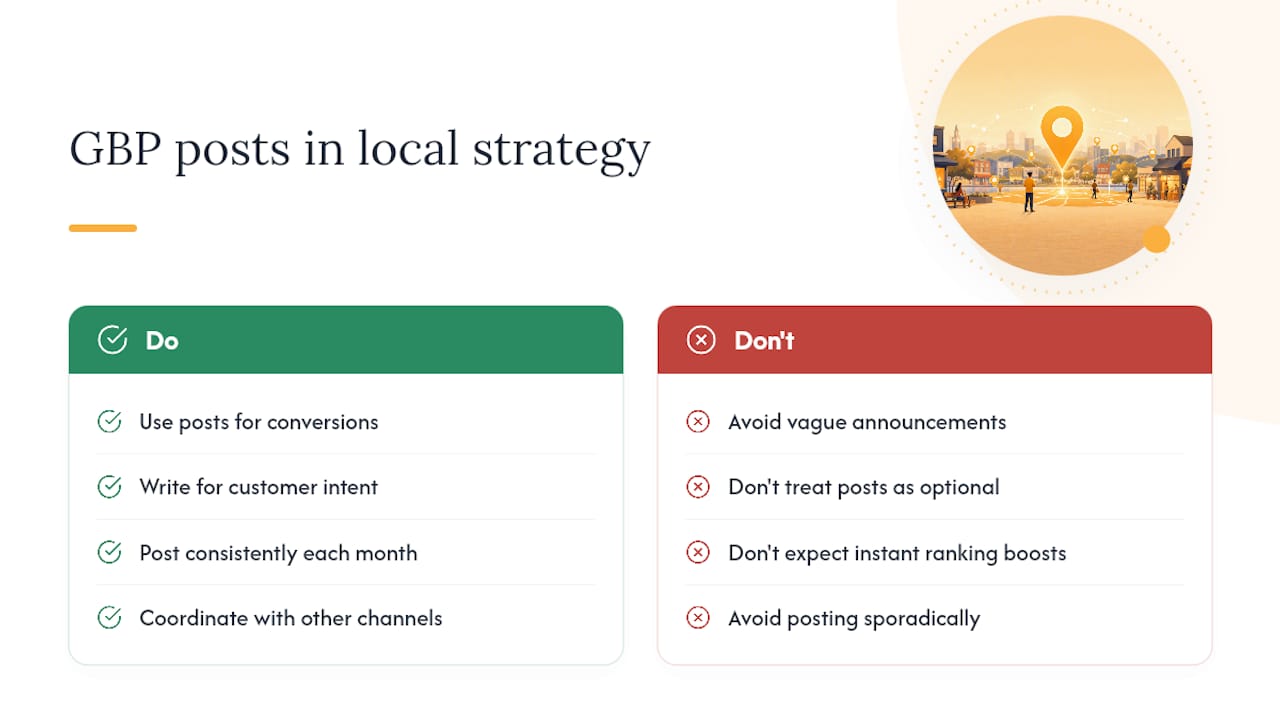
Why GBP posts belong in every local strategy
Most small businesses treat Google Business Profile posts as optional. SOL Social Media’s position is that they’re one of the highest-ROI activities available to a local business, precisely because the barrier is low and the placement is premium. When someone searches for your business or a service you offer, your profile is often the first thing they see. A post sitting in that profile at the moment of search is free advertising at the exact point of intent.
The mistake we see most often is treating posts as a broadcast channel rather than a conversion tool. A post that says “We’re open!” does almost nothing. A post that says “Free 15-minute consultation this week, call us to book” does something specific. The difference is intent alignment: write for what the customer is about to do, not what you want them to know.
Rank Math’s research confirms that posts don’t directly move local pack rankings, and we agree with that framing. But engagement signals, keyword relevance, and profile activity all feed into the broader local SEO picture over time. The businesses that post consistently and write for customer intent are the ones that build compounding visibility. It’s not a shortcut; it’s a discipline.
SOL Social Media integrates GBP posts into every monthly content package because they work best when they’re coordinated with the rest of a client’s social presence. A promotion that runs on Instagram, Facebook, and the Business Profile simultaneously reaches more people and reinforces the message. That coordination is where the real lift comes from.
Want a hands-off approach to GBP posting?
Running a small business means your time is already stretched. Creating, scheduling, and optimizing Google Business Profile posts every week is one more task competing for your attention, and it’s easy to let it slip.
SOL Social Media handles the full GBP posting workflow for small businesses: content creation, image sourcing, UTM-tagged scheduling, and monthly performance reporting. You get a consistent, on-brand presence on Search and Maps without adding it to your to-do list.
What’s included:
Monthly content calendar with post copy, images, and scheduled publishing
Offer, Event, and Update posts tailored to your business and local market
UTM-tagged CTA links so you can see exactly what your posts are driving
Reporting on profile actions, website clicks, and post performance
SOL Social Media works with retail shops, healthcare practices, service businesses, and local brands across the country. If you’re ready to stop posting inconsistently and start building a local presence that compounds, explore SOL Social Media’s engagement services and book a conversation about what a managed posting plan looks like for your business.
Useful sources for deeper reading
These are the official and high-quality references worth bookmarking if you want to go deeper on any part of this topic.
FAQ
What should I post on my Google Business Profile?
Post updates about your products, services, promotions, and events. Offer posts work especially well for driving clicks because they display a visible promotion label; aim for a mix of offer, update, and event posts throughout the month.
How do I see my Google Business Profile posts?
Search for your business name on Google or open your Business Profile dashboard at business.google.com. Your posts appear in the “Updates” section of your profile on mobile and in the profile panel on desktop.
How do Google Business Profile posts work?
You create a post through the dashboard, mobile app, or API, and Google reviews it before publishing. Once live, the post appears on your Business Profile in Search and Maps, where customers can read it and click your CTA button.
What are the rules for Google Business Profile posts?
Google prohibits illegal content, adult content, misleading claims, spam, and unsafe links. Images must be JPG or PNG, at least 250 x 250 pixels, and under 5 MB. Phone numbers and URLs in post text are also flagged. Review the full policy in Google’s Business Profile Help center before publishing.
How often should a small business post on Google Business Profile?
Sendible recommends 1–3 posts per week for single-location businesses. Consistency matters more than volume; a steady weekly post signals an active, trustworthy profile to both Google and potential customers.
Recommended
Comments