


Add Instagram Alt Text in Under a Minute for Creators and Small Teams

Instagram alt text is the written description attached to a photo that screen readers speak aloud to people who are blind or have low vision, and that Instagram’s systems use to categorize your image for search and Explore. The action to take is simple: replace Instagram’s auto-generated description with your own custom alt text every time you post. It takes under a minute, and it makes your content genuinely accessible while giving your posts a better shot at discoverability.
TL;DR:
Auto-generated alt text on Instagram is often inaccurate, so custom descriptions should be added for better accessibility and discoverability.
Each photo in a carousel needs its own specific alt text; neglecting this limits accessibility and content ranking.
Stories lack alt text fields, and Reels only support alt text for cover images, requiring text overlays or captions to provide key information.
Effective alt text is brief, focused on the subject, action, and one key detail, and should be written before creating the caption to avoid missed information.
Incorporating alt text into existing workflows and verifying tool support ensures consistent accessibility without additional effort.
How to Add and Edit Alt Text on Instagram
Instagram buries the alt text field a few taps deep, which is probably why so many accounts never touch it. Once you know where to look, adding it becomes a habit, not a chore.
On new posts (mobile):
Select your photo, edit it, and write your caption as usual.
On the final sharing screen, tap Advanced Settings.
Under Accessibility, tap Write Alt Text.
Type your description and tap the checkmark or Done.
Tap Share.
On new posts (web/desktop):
Upload your image and move through the crop and filter screens.
On the caption screen, click Accessibility.
Enter your text in the Write Alt Text field.
Click Share to publish.
This flow, and the editing steps below, follow the current process documented by Elgin Community College’s accessibility team, which tracks Instagram’s UI closely since the platform tends to shuffle menu labels every so often.
Editing alt text on a post you already published:
Open the post and tap the three dots (⋯) in the top right corner.
Select Edit.
Tap Edit Alt Text (mobile) or Accessibility (desktop).
Update the description and save.
You can go back and fix alt text on years-old posts, which is worth doing if you’re cleaning up an account’s accessibility before a campaign or an audit.
Carousels need one alt text per image, not one for the whole set. Instagram treats each photo in a carousel as its own asset for both screen readers and indexing purposes, so a single generic description covering all five slides leaves four of them essentially invisible to assistive technology. When you’re in the posting flow, tap into each individual image before hitting Advanced Settings, since the alt text field applies only to whichever image is active on screen. Swipe to the next photo, repeat the process, and don’t assume the app carries your first description across automatically. It won’t.
Reels covers and Stories are a different story, literally. Instagram doesn’t offer a native alt text field for Stories, and Reels only lets you add alt text to the static cover image that appears on your grid, not to the video content itself. The practical workaround for Stories is to add visible on-screen text describing key information, or to fold the description into your caption or a text overlay so screen readers relying on the University of Maryland’s accessibility guidance can still access it. For Reels, treat the cover image alt text the way you’d treat a static post: describe what’s visible and skip the auto-generated placeholder entirely.
Why Alt Text Matters for Accessibility and Discoverability
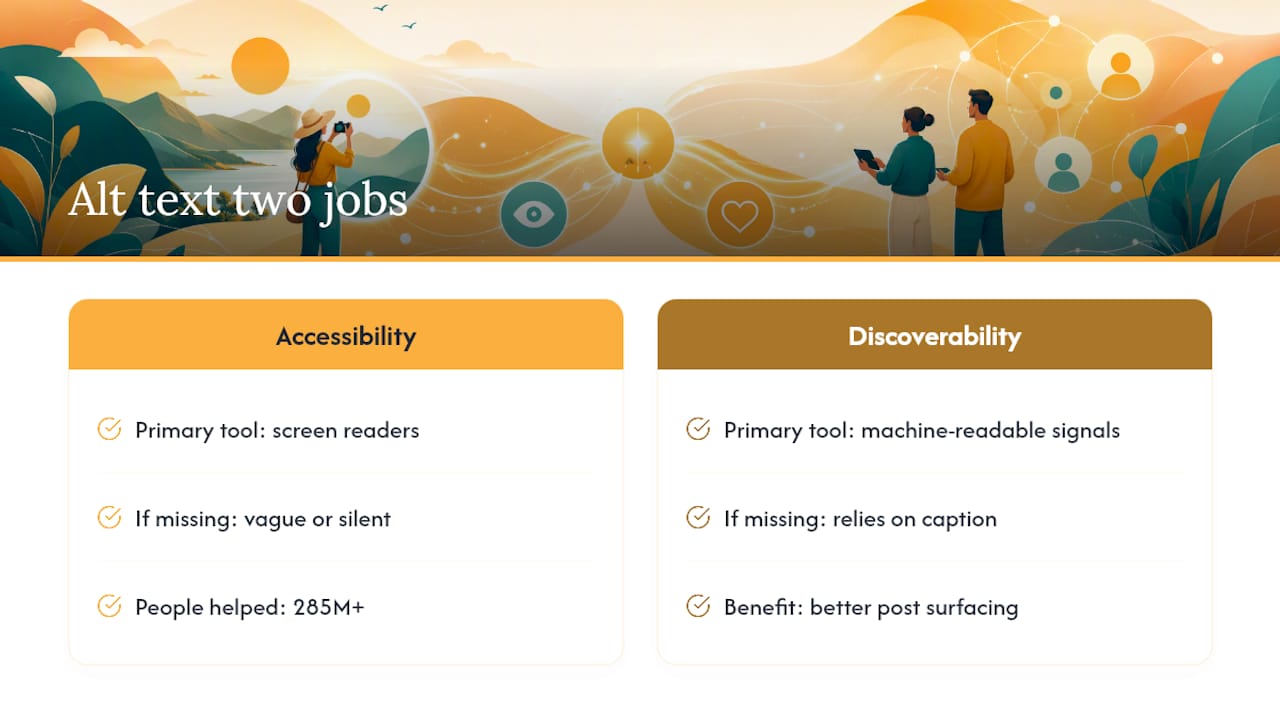
Alt text does two jobs at once, and most creators only think about one of them.
The first job is accessibility. Screen readers like VoiceOver on iPhone, TalkBack on Android, and NVDA or JAWS on desktop computers scan a page or app and speak the alt text aloud when they hit an image, using it as the primary source for what that image contains. Without custom alt text, a screen reader either reads Instagram’s auto-generated guess, which is often vague, or announces nothing useful at all. That’s not a minor inconvenience.
More than 285 million people worldwide live with some degree of visual impairment, according to the World Health Organization. That’s a larger population than most countries, and a meaningful share of anyone’s potential audience on Instagram.
The second job is discoverability, and this is the part brands tend to overlook. Alt text gives Instagram’s systems machine-readable context about what’s actually in your image, feeding the same signals that influence whether your post surfaces in Explore, hashtag searches, or Instagram’s in-app search results. A blurry, unlabeled product shot competes on caption text alone. The same shot with a clear, specific alt text description gives the algorithm one more reason to understand what it’s looking at, and to show it to the right people.
The outcome for creators who do this consistently is twofold: content that reaches blind and low-vision users who would otherwise scroll past a wall of silence, and content that has a slightly better chance of surfacing where new followers are actually looking. Neither outcome shows up if you skip the field.
Alt Text Writing Rules That Actually Work
Good alt text follows a formula, not inspiration. Here’s the formula: subject, then action or context, then one relevant detail. “Woman in a yellow apron kneading bread dough on a marble counter” tells a screen reader user exactly what a sighted viewer would notice in two seconds.
Keep it short. The practical sweet spot is 100 to 125 characters, long enough to be specific, short enough that a screen reader doesn’t drone on before getting to the point. If an image carries important text, like a price, a date, or a quote, include that text verbatim; otherwise it disappears entirely from both accessibility and search context.
A few habits separate strong alt text from lazy alt text:
Skip “image of” or “photo of” as an opener. Screen readers already announce that it’s an image, so those words waste your character count. Start with the subject instead, per accessibility guidance from the University of Nebraska.
Never copy your caption word for word into the alt text field. Captions carry tone, hooks, and calls to action; alt text carries visual facts. They’re different jobs.
Leave out hashtags and emojis. A screen reader will try to pronounce a hashtag string or an emoji name, and neither helps anyone picture the image.
Don’t stuff keywords hoping to game discoverability. Instagram’s systems and screen reader users both notice when a description reads like a list of search terms instead of a sentence.
Describe what matters, not everything. A cluttered background rarely deserves a mention; the product, the person, or the action does.
Here’s how the formula plays out across common post types:
Product shot: “Matte terracotta ceramic mug with a wide handle on a wooden shelf.”
Lifestyle image: “Two friends laughing over coffee at an outdoor cafe table.”
Infographic or quote graphic: Include the actual text on the image. “Graphic reading: ‘Consistency beats perfection’ in white serif font on a navy background.” Skipping this means a screen reader user gets nothing of the actual message, and neither does Instagram’s indexing.
Carousel slide 3 of 5 (a before/after comparison): “Before and after photo of a repainted kitchen, cabinets now sage green.”
Pro Tip: Write your alt text description before you write your caption. It forces you to look at the image itself instead of writing from memory, and you’ll catch details, like visible text or an on-screen call to action, that you’d otherwise miss.
If you need a repeatable structure for different content types, try these quick templates: for products, “[Item] in [color/material] on/against [setting].” For people-focused shots, “[Who] [doing what] at/in [location].” For graphics, “Graphic reading: ‘[exact text]’ with [visual style note].” Swap in your specifics and you’ll have consistent, useful alt text in under a minute, even on a busy posting day.
Building Alt Text Into Your Publishing Workflow
Alt text stops feeling like an extra step once it’s baked into how you already work, not bolted on afterward.
Write it when you write the caption, not after the post is scheduled. If you draft content in batches, add a short “alt text” line to your content brief or spreadsheet next to each caption. This turns a task people forget into a task that’s already done by the time you open Instagram.
If you use a scheduling tool, check that it actually preserves alt text through to publishing. Many scheduling platforms support an alt text field, but not every one pushes it through to Instagram correctly, so test one post and confirm the description shows up before you trust the workflow at scale.
AI tools can draft a starting description from an image, which saves time on high-volume weeks. Treat that draft as a rough cut, not a final answer: review it for accuracy, correct any misread details, and make sure the tone matches your brand voice before it goes live.
A simple four-point QA check before you hit schedule:
Does the alt text describe the subject accurately, not generically?
Is any visible on-image text included word for word?
Is it under roughly 125 characters?
Does it avoid hashtags, emojis, and a copy-pasted caption?
Teams that treat this as a marketing process question, not just an accessibility checkbox, tend to find the creative brief questions from Roadbase useful for capturing visual context up front, before an image ever reaches the posting stage.
Common Alt Text Problems and How to Fix Them
Instagram’s auto-generated alt text uses image recognition, but the results are frequently vague or flat-out wrong, describing “a person, outdoor, tree” for a photo that’s actually about a product launch. Override it every time; don’t assume the algorithm nailed it because it usually didn’t.
A few other realities worth knowing before they surprise you:
Followers can’t see alt text in the feed. It’s invisible to sighted users scrolling their timeline, so if the image carries essential information, like a promo code or event date, repeat that text in your caption too.
The character limit rewards brevity, not detail dumps. If a description needs more room to do justice to a complex graphic, move the extra detail into the caption instead of cramming it into alt text.
Stories have no alt text field at all, and Reels only support it on the cover image. Use on-screen text or caption details as your accessibility workaround for both.
Carousels reset per image. Forgetting to add alt text to slides two through five is the single most common mistake once creators start doing this consistently.
SOL Social Media’s Take on Accessible Content
Accessibility gets treated as an afterthought by a lot of brands, something to circle back to once the “real” content strategy is sorted. Accessibility gets treated as an afterthought by a lot of brands, something to circle back to once the “real” content strategy is sorted. Building it into the workflow from the start ensures posts reach a wider audience. Our approach to social media content creation folds alt text and accessibility checks into the same process we use for captions, hashtags, and visuals, driven by real insight into each client’s audience rather than a generic template.
This thinking has been applied across clients who needed consistent engagement, not just consistent posting. Hands-on audits of accessibility habits and training sessions to help staff write alt text correctly without thinking twice are services that social media agencies offer.
— SOL Social Media
Get Hands-On Help With Accessible Social Content
Small businesses can benefit from agencies that provide real human copywriters who build alt text and inclusive content into strategies from day one, instead of treating it as an afterthought bolted onto a template. Whether you need someone else handling the posting entirely or you just want your team trained to do it right, there’s a plan that fits.
Our Customized Social Media Training sessions walk your team through writing alt text, structuring captions, and running an accessibility check before anything goes live. If you’d rather hand the whole process off, Social Media Content Creation covers posts, captions, and accessibility together, and our Monthly Unlimited and Weekly Consulting plans both include this as standard practice, not an upsell. Reach out for a quick accessibility audit of your last ten posts and see exactly where the gaps are.
Sources
For platform-specific steps, Elgin Community College’s Instagram accessibility guide and Stanford University’s accessibility techniques stay current on UI changes. For broader context on visual impairment scale, the World Health Organization’s fact sheet is the authoritative reference.
Blindness and visual impairment — World Health Organization
FAQ
What is alt text on Instagram?
Alt text is a hidden written description attached to a photo that screen readers read aloud to blind and low-vision users, and that Instagram uses to understand and categorize the image for search and Explore. You add it through Advanced Settings on mobile or Accessibility on the web during posting.
Can people see alt text on Instagram posts?
No, alt text is invisible to anyone scrolling the feed normally. It only surfaces through a screen reader or when someone deliberately checks a post’s accessibility info, which is why any critical details, like a promo code or event date, need to be repeated in the caption too.
How do you write alt text for an Instagram post?
Follow a simple formula: name the subject, add the action or setting, then include one relevant detail, keeping the whole description around 100 to 125 characters. Include any visible on-image text word for word, and skip “image of,” hashtags, and emojis.
Can people see my alt text if I don’t write one?
If you skip it, Instagram fills in an auto-generated description using image recognition, which is frequently vague or inaccurate. It’s still technically there for screen readers, just not reliable, which is why writing your own is worth the extra minute.
Does SOL Social Media help with alt text and accessibility?
Yes. SOL Social Media builds alt text and accessibility checks into its content creation and training services, and current pricing for managed plans is available on the pricing page.
Recommended
Comments